Saving and Loading Presets
Presets save all field information — their sound, transposition, length, position, LFO settings. All data is stored on the SD card.
Local Presets
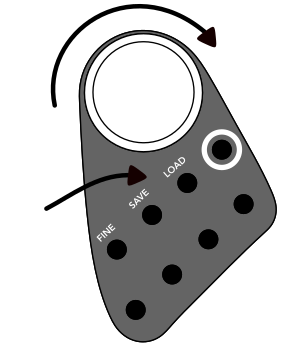
Seven local presets can be saved and recalled directly on the instrument by holding the SAVE or LOAD buttons. While holding:
- Use the main dial to navigate to one of the seven slots.
- Press the dial to load or save.
Within the app, these seven slots can be accessed from the library under the section labelled local 1
through local 7.
Whenever you turn on your Haloplane, the local 1 preset is loaded.
Use local presets for temporary and performance-based quick access.
App Presets
Up to 100 additional user presets can be saved and loaded via the app library. Access the library by clicking or tapping the icon in the app.
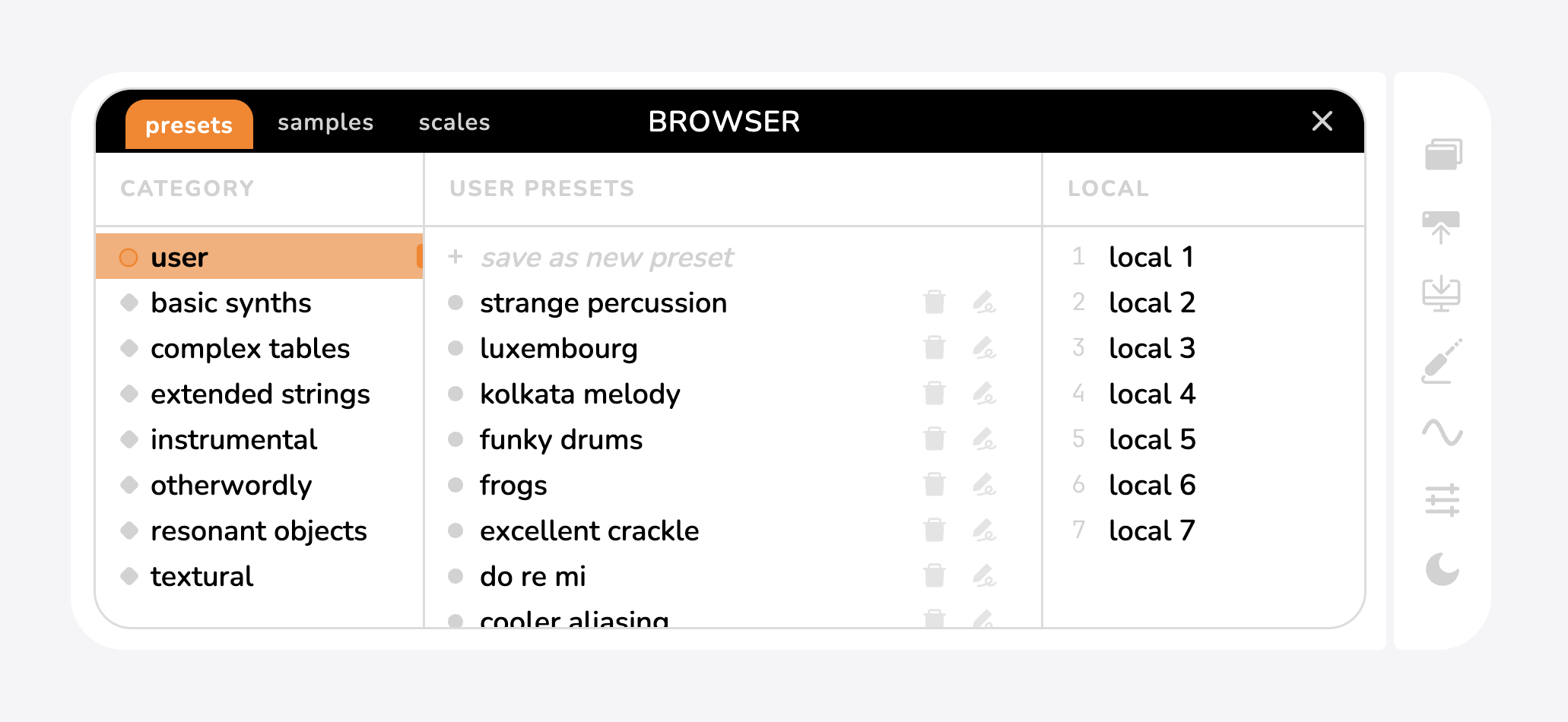
To save a new preset:
- Go to the user section of the presets tab.
- Press + save new preset.
- By default, all new presets are named
new preset— tap the icon to rename. - To delete a preset, tap the delete icon.
To transfer a library preset to a local slot: load the preset on the instrument, then re-save it to one of the local slots using the instrument's buttons and knob.
.hplane Preset Files
While in the companion app, you can also save and load presets as .hplane files. This provides a way to share presets across
instruments or backup a preset to your device in a bundled format. To save a preset to the Haloplane itself, use the library.
Click or tap the icon to download the instrument's current state as a .hplane. Some browsers may
try to block this unusual format, so you may need to allow the download in your browser's settings.
Click or tap the icon to open a preset (.hplane file), or upload an audio file to currently selected fields.
Also supports drag and drop on desktop.
Backing Up Your Data
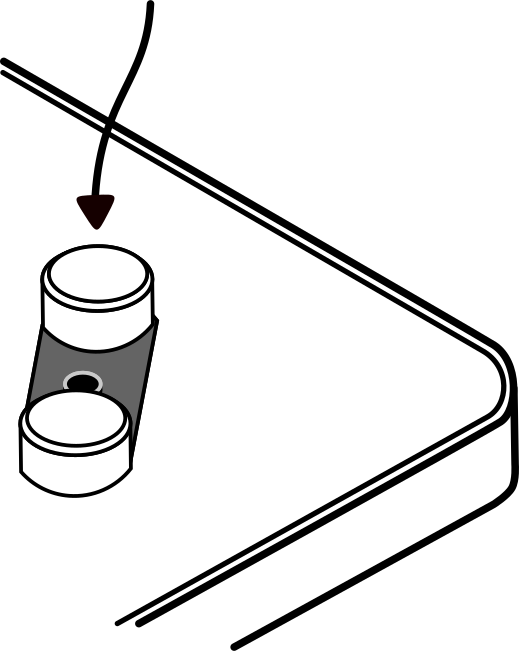
Pressing and holding the length knob while connecting the Haloplane to your computer will mount the SD card as a drive. From there, you can back up all your presets, scales, and recordings by copying the contents of the SD card to your computer. Your Haloplane's entire identity is stored on the SD card, so this is the best way to ensure you have a complete backup of your data. Be sure to safely eject the drive before disconnecting the Haloplane.
We do not recommend directly editing or modifying any of the files on the SD card, as this may cause issues with the instrument. Always make a backup before making any changes.
You can download the base SD Card files here, and copy them to your SD card to restore the instrument to its factory state: Base SD Card Files.