Feature Overview
Side Controls
On the side of the Haloplane you will find various thumbwheels and jacks. These alter the sound of the pickups and provide CV connectivity.

USB + SD Card
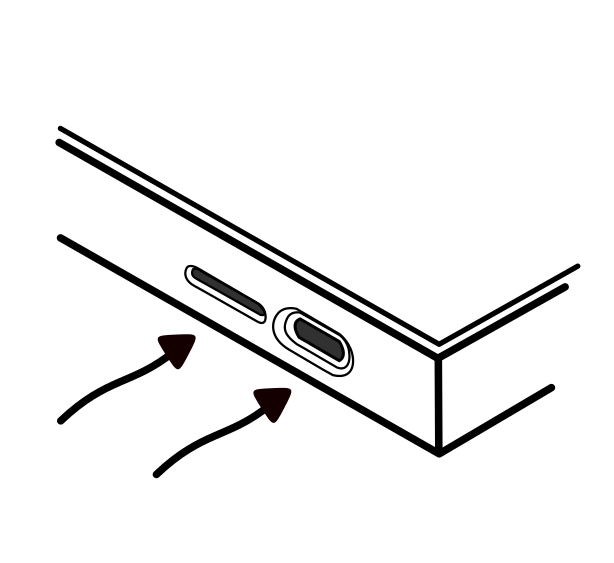
The USB-C connection powers on the Haloplane. There is no power switch. The microSD card slot is also accessible on the side. A microSD card is necessary for the device to run correctly and is included in the instrument.
CV Input + Rotation
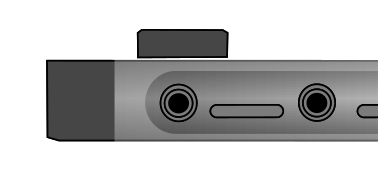
Turning the rotate thumbwheel moves the fields around the Haloplane's surface. Once the fields complete a full rotation, their octave will also increase by one.
The CV input allows an external signal to modify the rotation or other parameters as configured through the companion app.
The Haloplane's CV connectivity expects and outputs a range of 0–5 V. Its CV inputs can tolerate larger voltage ranges, such as those from Eurorack and modular synthesizers.
Audio In + Microphone
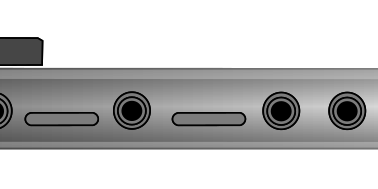
An external signal can be directly connected to the instrument. When no cable is present, the built-in microphone is automatically in use. Its thumbwheel sets gain from 0–4x, allowing both attenuation and amplification of the signal. Audio signals are monitored to any field that is selected, and can be recorded into it.
Field Pickup Inputs
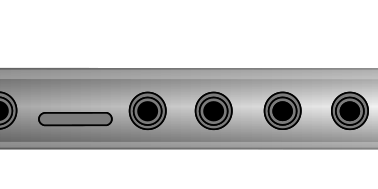
Plug the two included pickups into inputs A and B. The pickups' signals are amplified and further manipulated via the filter and effects. Sensitivity and panorama can be configured via the app.
Envelope Follower
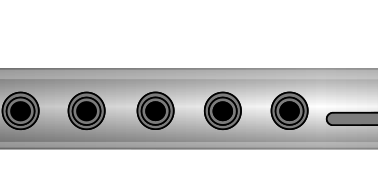
The envelope follower converts the pickups' audio output into a CV signal that can be used to modulate/vary parameters on the instrument based on the pickups' volume (proximity to the instrument's surface). This CV output can be externally patched to the filter, effect, or rotation CV inputs via a patch cable.
Modulation Output
The modulation output is a modulation source based on pickup activity. It can be reconfigured into three different modes via the companion app, and can also be configured as a secondary envelope follower for full-stereo envelope CV.
Filter & Audio Effects
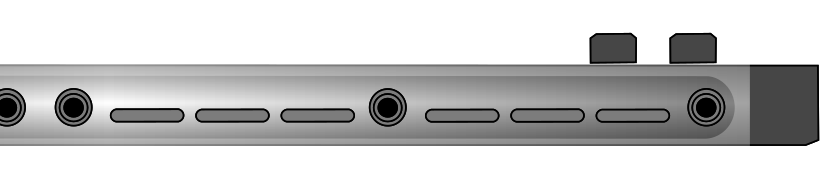
The filter modifies the pickups' sound and can be used to darken or brighten the raw sound of the instrument. The MOD output is normalled to the filter's control voltage input, meaning when nothing is plugged into the filter's CV input, the MOD output will be used instead. The filter can be reconfigured as low pass, high pass, or band pass via the app.
Audio Effects
The audio effect provides a stereo digital effect to the filtered pickups' output. By default, the effect is a delay (control A modifies time and control B modifies feedback). The effect can be configured via the companion app. Control A normally changes a time/frequency-based parameter while B normally controls depth/feedback.
The final jack on the audio effect is the main stereo output of the instrument, a 3.5mm/mini-jack consisting of two channels. The simplest way to notice is via headphones. For further processing or use with mixers or powered speakers, use a stereo splitter cable (stereo 3.5mm on one end, two mono cables on the other representing left and right channels).
All customizable settings for the pickups such as filter type and effect type, can be edited on the fly using shortcut button combinations. Check them out here.
Top Controls
The top of the Haloplane contains buttons and knobs which are used to control the sound of the fields, save and load presets, and record.
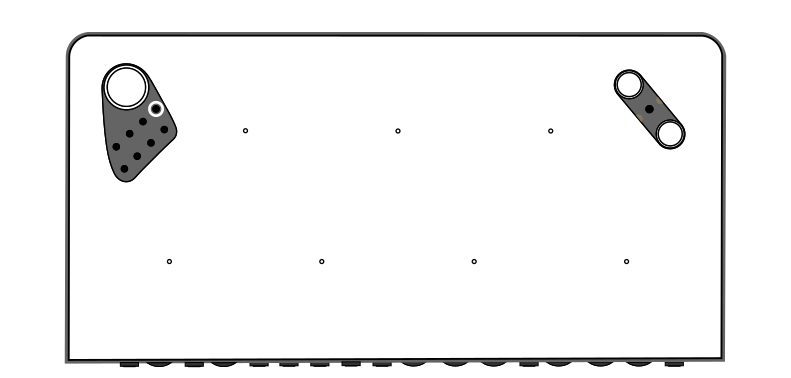
Main Dial
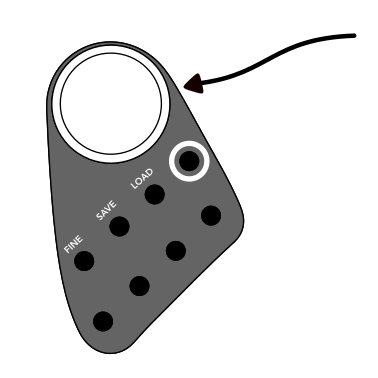
The main dial has two functions:
Press and hold — records into selected fields.
Turn — changes the pitch (±1 semitone at a time) of selected fields.
Turn while holding the button labeled fine to change the pitch of selected fields ±1 cents at a time.
Selection Buttons
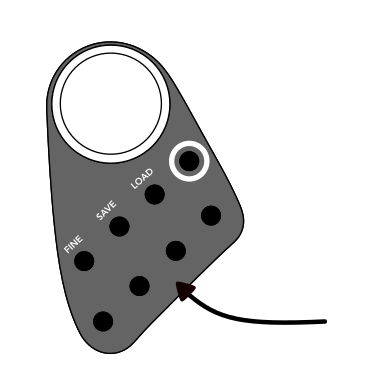
These buttons each correspond to a field on the surface of the Haloplane. Pressing each will select its corresponding field. Each field is illuminated when selected.
The encircled button selects (or deselects) all fields at once. It also has additional features:
Hold + press a parameter's dial — resets that parameter to its default.
Hold + double-press a parameter's dial — randomizes that parameter.
Hold + press field select button 1, 2, 3, or 4 — loads one of the four default wavetables into selected fields.
Randomizing the pitch parameter (Hold select all + double-press main dial) chooses a random scale if all fields are selected.
Save and Load Presets
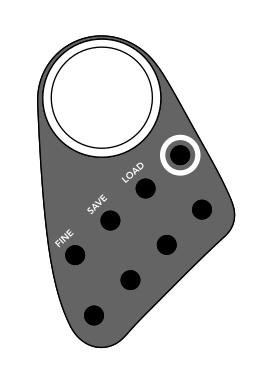
The Haloplane contains seven local preset slots. Hold the LOAD or SAVE button to enter the save/load menu. Scroll with the main dial and press it to load/save to one of the seven preset slots.
Presets save everything about the fields you can hear: their sample, transposition, length, position, and modulation (LFO settings). Rotation, and pickup settings (everything on the side of the instrument), isn't part of the field's sound and isn't saved in a preset.
Sample / LFO Edit Modes
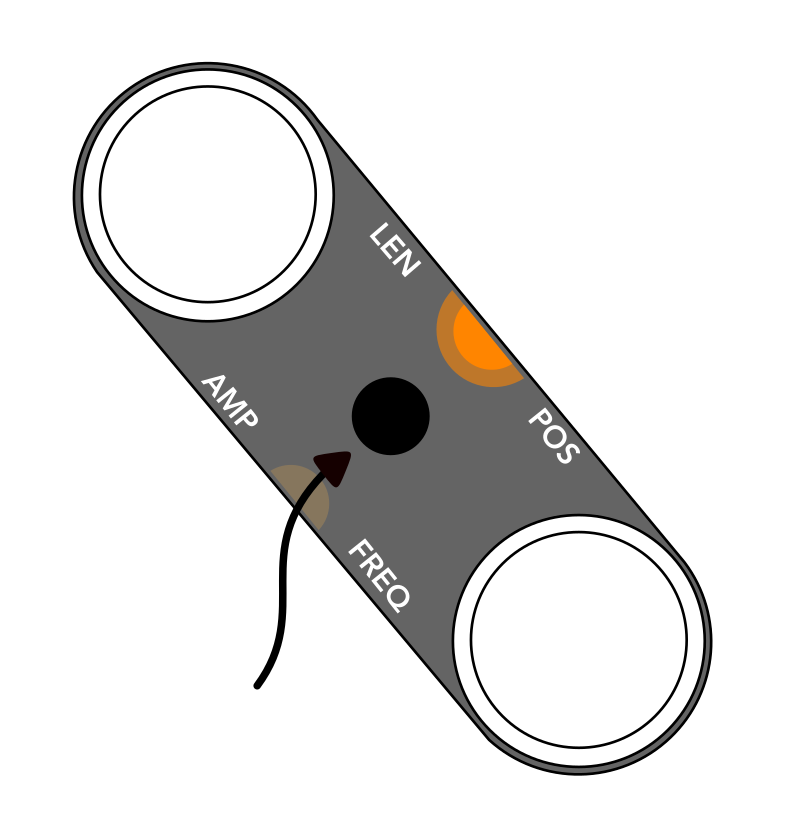
Pressing this button toggles the functionality of the two smaller dials. The currently selected mode is visible via the illuminated LED.
Position / LFO Frequency Dial
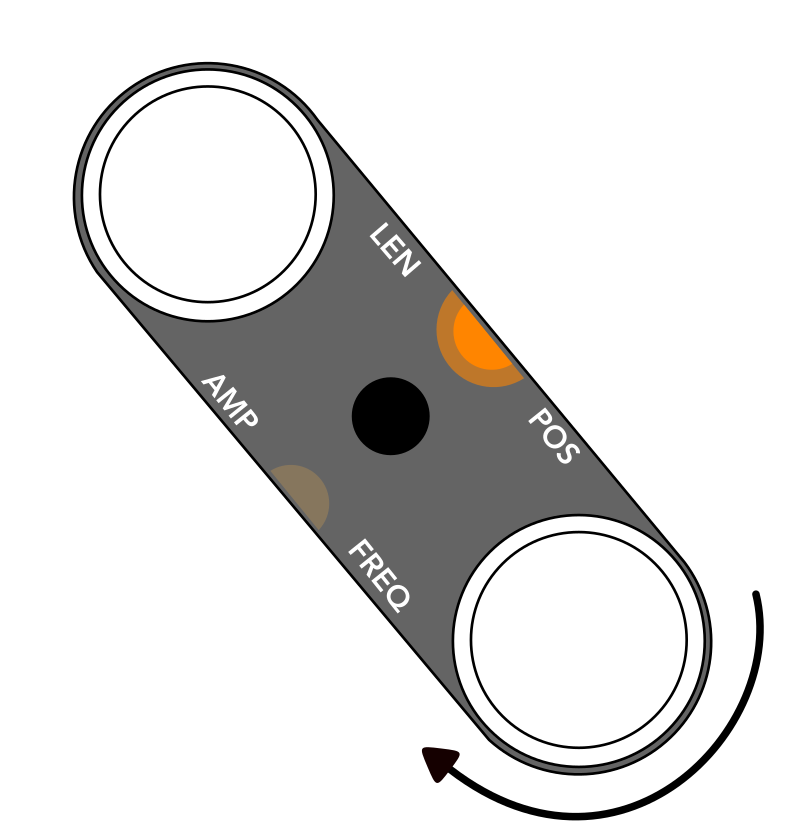
- Sample mode — changes the sample position (crossfades between slices).
- LFO mode — changes the LFO frequency. Press to toggle the LFO waveform (sine, triangle, saw, square, random).
Length / LFO Amplitude Dial
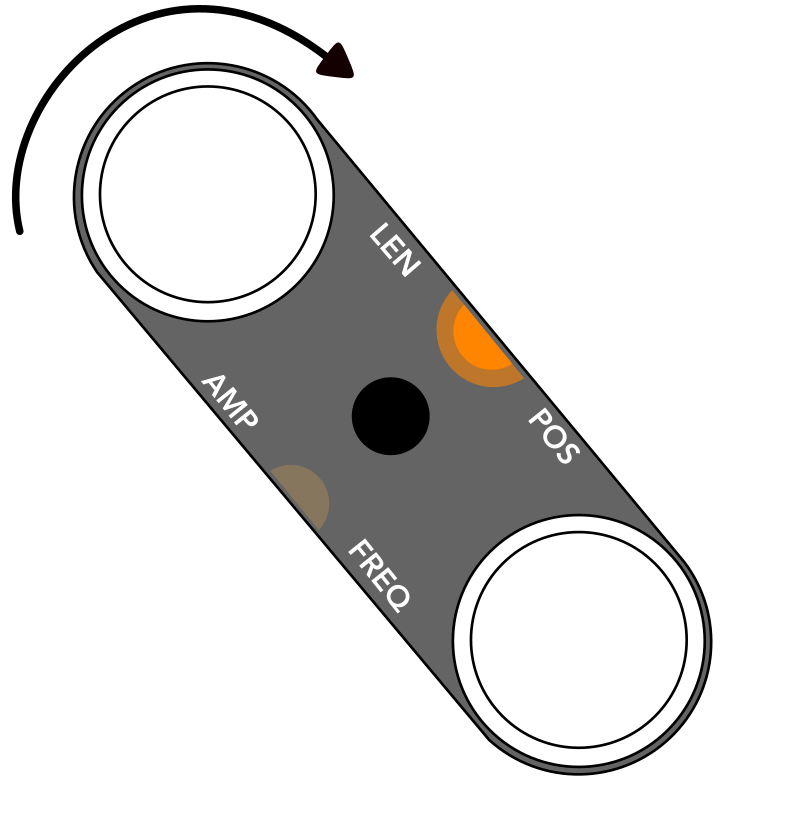
- Sample mode — changes the sample length, and therefore also the number of slices. Press to playback in reverse.
- LFO mode — changes the LFO amplitude. Press to change the LFO destination (pitch, position, or length).
Blinking of a field indicates that the maximum or minimum of the parameter's range that you are modifying has been reached.