USB Audio Mode
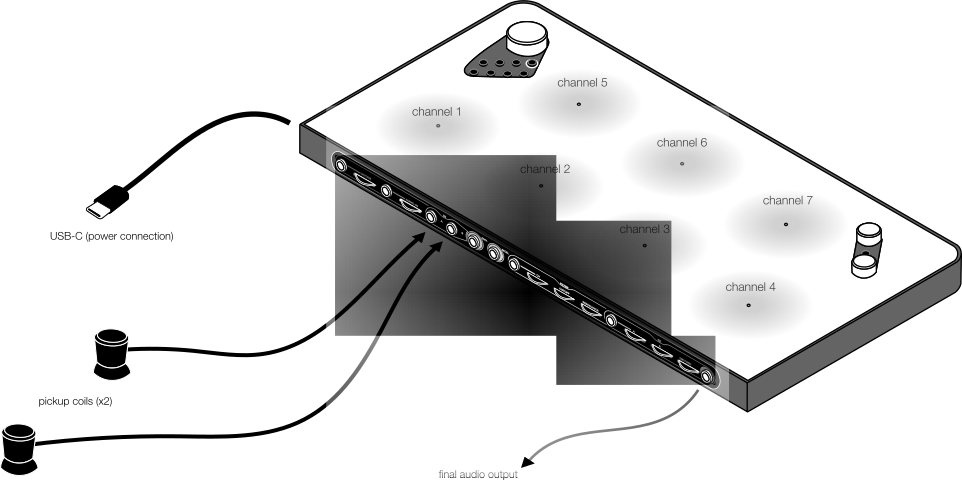
The Haloplane can also be used as a USB audio interface, allowing you to stream seven sounds from your computer to the instrument. This means that the Haloplane's fields can emit any sound that your computer can produce.
USB audio mode is completely separate from the standard standalone synthesizer mode: the companion app, field rotation, pitch changes, presets, etc. are not relevant to USB audio mode and cannot be accessed.
The pickup controls, filter, and effects still affect the pickups' sound in USB audio mode. Pickup, filter, and effect settings can be changed on the fly using the buttons on the top of the instrument.
In this way, the computer can be thought of as a replacement for the sound engine of the fields of the Haloplane, with the instrument's final analog 3.5mm output still being the output used to listen to the instrument.
LEDs of each field illuminate to indicate the signal level present at each field, and you can use the pickups to listen for the fields as you would in normal standalone mode.
Starting in USB Audio Mode
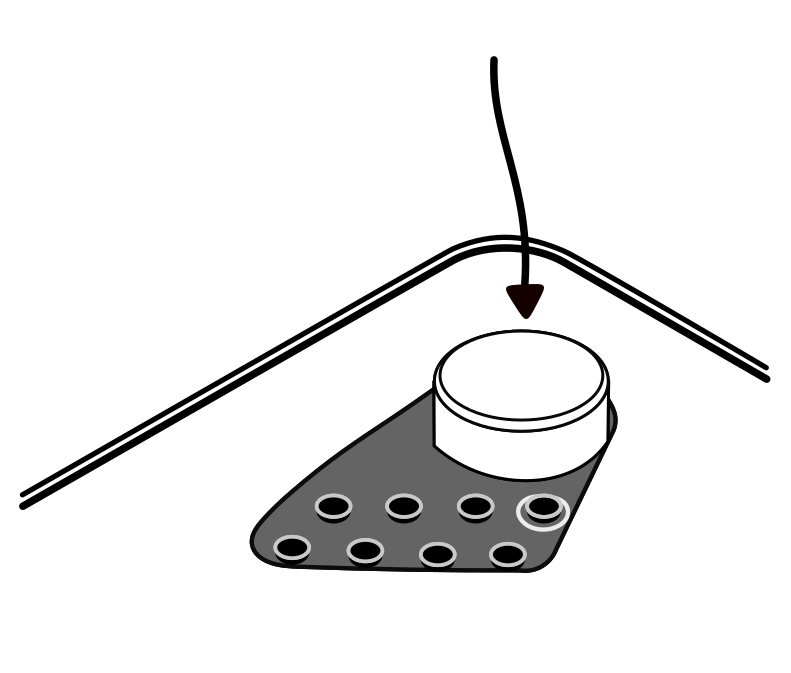
To start the Haloplane in USB audio mode, press and hold the main dial while connecting the instrument to your computer or iPad. You should see your Haloplane available on your computer as a multi-channel audio interface.
Requirements
The Haloplane is a driverless USB audio device that works with any modern operating system that supports USB audio class devices including macOS, Windows, Linux, and iPadOS.
In order to make use of the USB audio mode, you will need an app on your computer that can stream 7 different outputs to the Haloplane. If you just connect the Haloplane and play your computer's audio, you'll hear the two channels of your computer on fields 1 and 2, while 3 through 7 will be silent.
Channel Mapping
Each active USB playback channel is routed to the field with the same number. Route your DAW or audio app’s outputs 1–7 to the Haloplane’s channels 1–7 to address all fields independently. Channel 8 is present only to make an even number of interface channels and produces no sound.
Pickup Settings
The pickups will still pick up the sound of the fields in USB audio mode, and the pickup controls will still affect the sound of the pickups. Use these button actions to quickly adjust the pickups for use in USB audio mode.
The 7 field LEDs will briefly indicate which setting has been selected.
Sensitivity: main dial (press)
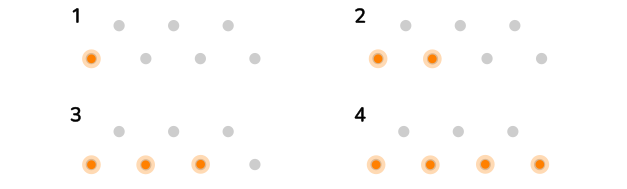
Panorama: position knob (press)
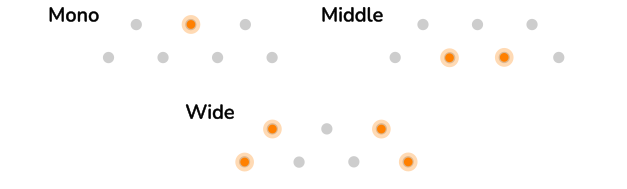
Modulation Output Type: length knob (press)
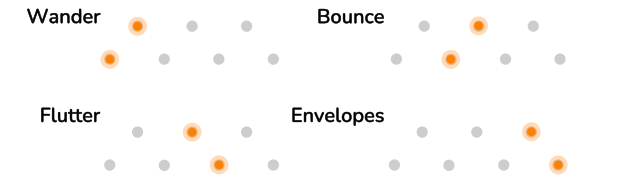
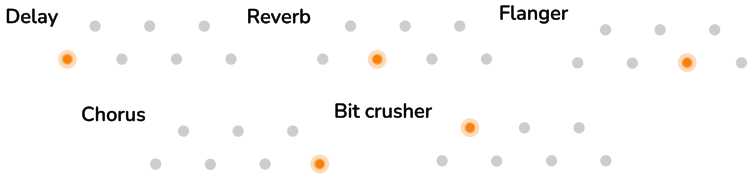
Effect Type: pressing field selection buttons 1 - 5
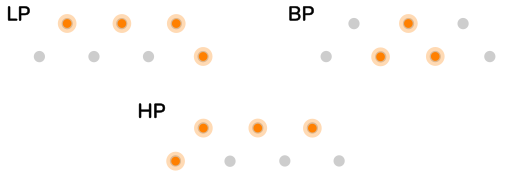
Filter Type: pressing field button 6
Usage with iPad
The Haloplane can be used with modern iPads (those with USB-C ports).
The iPad will directly power the Haloplane, and any audio from the iPad will be streamed to the instrument. This means that you can use the Haloplane with iOS apps that support multi-channel USB audio output, such as AUM.
Usage with Ableton Push 3 Standalone
The Haloplane can be used with the Ableton Push 3 Standalone.
Ableton Push requires:
- Up to date firmware to work with the Haloplane. Please see the Ableton Push 3 Standalone article for more information.
- An externally powered USB hub (the Haloplane requires more than the 500mA supplied by the Push. Plugging it in directly will cause periodic restarts.)
Eighth Channel?
The Haloplane's USB audio mode supports seven active playback channels. However, you will see it listed as an 8-channel audio interface, because many DAWs and software require an even number of channels for use as stereo pairs (Ableton specifically requires this). The eighth channel is not used by the Haloplane and is silent.