Troubleshooting
Common issues and solutions for the Haloplane. If you are experiencing a problem not listed here, please contact support.
No Sound
Why isn't my Haloplane making any sound? Let's check the basics first.
Make sure the fields are playing some sound:
- Select all fields
- Hold the record button with the record gain set high
- Check this section for more information about how to create and load sounds: Sound Sources
- Alternatively, load any factory preset from the companion app: Companion App
Check that the pickup signal is properly set up:
- Ensure the pickup is plugged into the pickup input and place it directly over a field.
- Ensure the filter is all the way up (fully open) and the CV knob is turned down (fully closed).
- Some effects (bit crusher especially) can produce silence if their settings are extreme, set the dry/wet knob fully dry.
Controls And Selection Issues
Most sound parameters on the Haloplane only affect the currently selected fields. Field selection remains active until you change it, and more than one field can be selected at the same time.
If a knob seems to be changing several fields at once, or a recording is appearing in an unexpected field:
- Check which field indication lights are on.
- Deselect any fields you do not want to edit.
- Select only the field or fields you want to change.
The SELECT ALL button can be used to select or deselect all fields at once.
Field selection also determines where recordings, uploaded samples, and wavetables are loaded.
For more information, see Basic Controls and Sound Sources.
I Can Hear the Microphone or Audio Input While Playing
This is normal. To stop this, turn down the AUDIO IN thumbwheel, or disabled monitoring by deselecting fields.
Selecting a field arms it for recording and enables input monitoring. The input signal can then be heard when a pickup is placed over that selected field.
If you are using the built-in microphone, this can make button presses, knob movements, voices, or other nearby sounds audible while you play.
To reduce or stop the monitored input:
- Turn down the AUDIO IN thumbwheel when you are not recording.
- Keep in mind that selecting additional fields will also enable monitoring on those fields.
When nothing is connected to the audio input jack, the built-in microphone is automatically active. Connecting a cable to the audio input disables the built-in microphone.
My Recording Became Much Louder After Recording
The Haloplane automatically normalizes each completed recording or sample upload.
Normalization adjusts the recording so that its highest peak reaches an appropriate level. This means that even a relatively quiet recording may become significantly louder once recording finishes.
The benefit of this is that dialing in the correct recording level is less critical, any middle recording setting will produce a usable recording at a consistent volume with all fields.
Normalization is applied automatically and does not need to be enabled.
A Sample or Wavetable Loaded to the Wrong Field
Samples and wavetables sent from the companion app are loaded onto the currently selected fields on the Haloplane.
Before uploading:
- Select the field or fields you want to replace.
- Make sure any other fields are deselected.
- Upload the sample or wavetable from the companion app.
The wavetable designer itself does not control the Haloplane in real time. Designing or previewing a wavetable only changes the wavetable in the browser. You must upload it to the Haloplane before it affects the instrument.
If you are unsure whether an upload worked, first confirm that the intended field was selected, then place a pickup directly over that field and listen to it.
Blinking Fields
Why do LEDs of each of the fields blink?
- This indicates that the parameter has hit the end of its range, and is either 0% or 100%.
- When monitoring, rapid blinking indicates a clipping signal.
Distorted Audio Input Sound
Strange distorted sound when an external audio signal is plugged into the audio input?
This is caused by mismatching mono and stereo cables. Use a stereo cable to fix this distortion. This issue occurs when using a mono cable with a stereo source, and connecting it to the Haloplane.
Lost Wi-Fi Password
If you're completely locked out of the companion app because you forgot your Wi-Fi password, you can reset the Wi-Fi settings by holding the SAVE and LOAD buttons while powering on the device. This resets the Haloplane Wi-Fi network to its default name and removes its password.
Forcing AP Mode
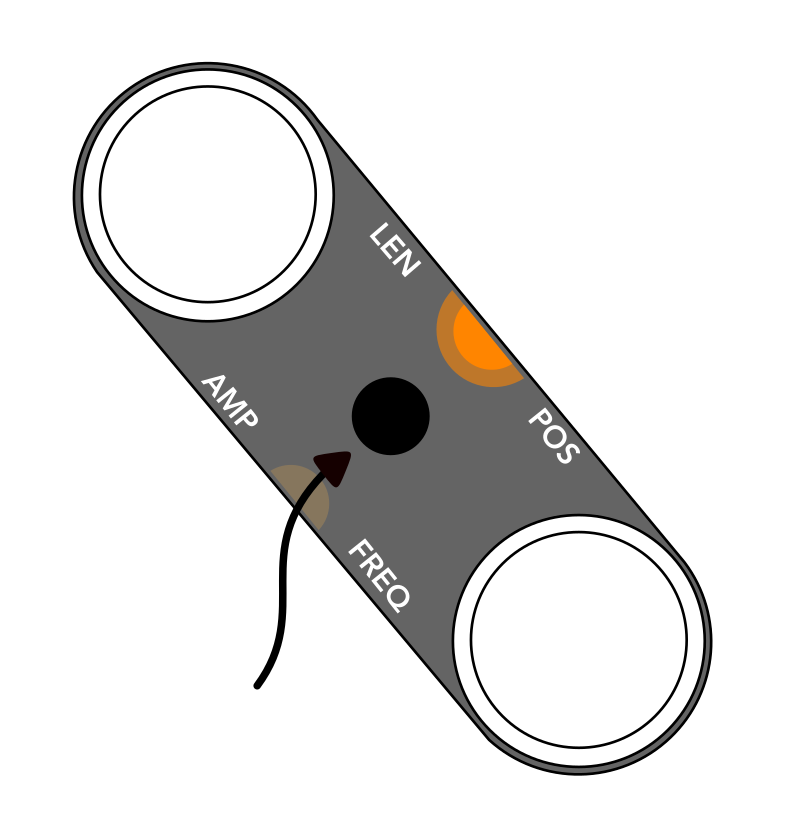
If you want the Haloplane to start in AP mode, press and hold the right mode toggle button while powering on the device.
Data Backup and Factory Reset
For backup and recovery instructions, see microSD Card.
Getting STA Mode Working
STA mode lets the Haloplane join an existing Wi-Fi network. AP mode instead creates the Haloplane’s own Wi-Fi network. STA mode works with many, but not all, networks. Here are some tips for understanding if your network is compatible and how to get it working:
- The Haloplane only supports 2.4 GHz Wi-Fi networks. If your network is 5 GHz only, the Haloplane will not be able to connect.
- Some networks have security settings that may prevent the Haloplane from connecting. For example, enterprise networks or networks with captive portals are not compatible.
- If your network is compatible but the Haloplane is still having trouble connecting, we recommend using AP mode instead. AP mode allows you to connect directly to the Haloplane's own Wi-Fi network, bypassing any issues with your existing network.
Contact Support
Do you think something is wrong with your Haloplane? If you have tried the troubleshooting steps above and are still experiencing issues, please contact support at support@koma-elektronik.com. Include a detailed description of the issue, steps to reproduce it, and any relevant screenshots or videos.
Reporting a Bug
Contact passepartoutduo@gmail.com — include a detailed description of the issue, steps to reproduce it, and any relevant screenshots or videos. We will do our best to respond in a timely manner.