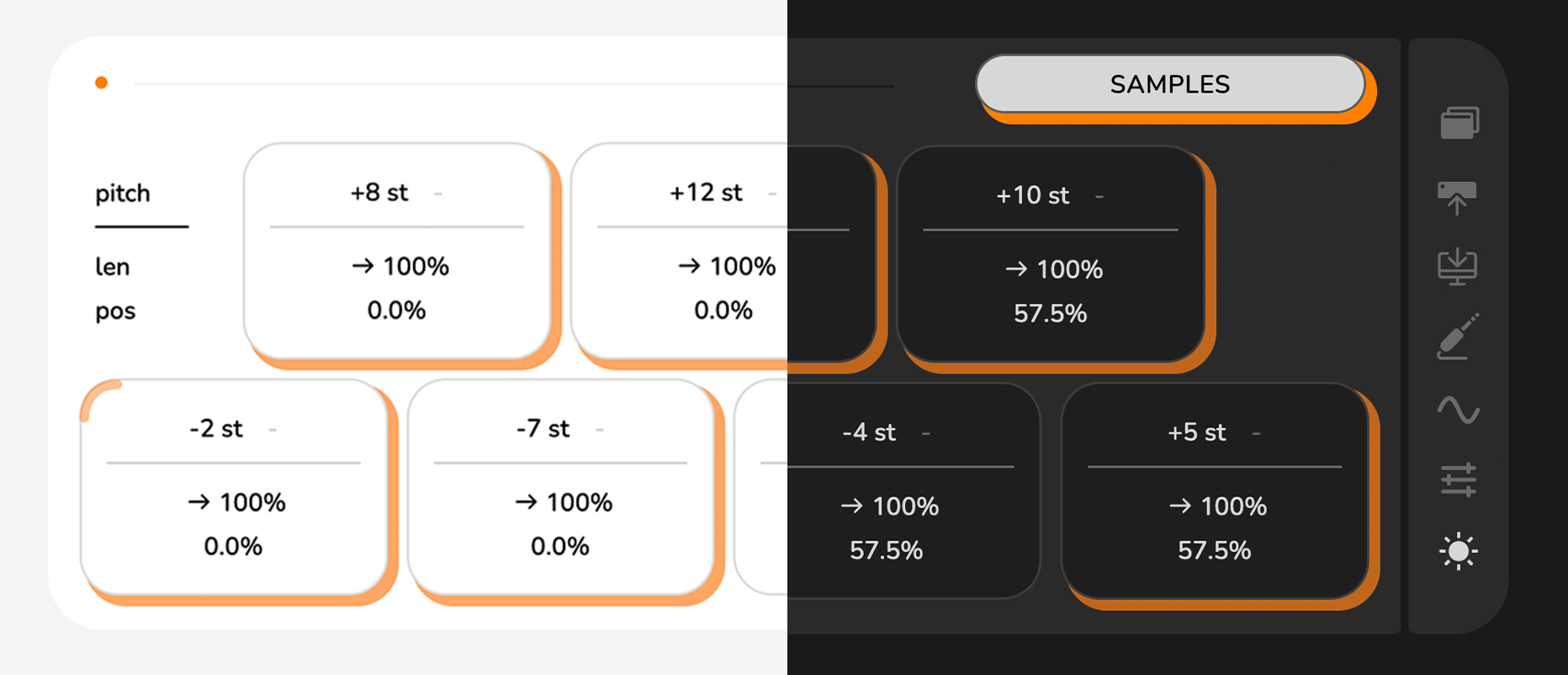
Companion Application
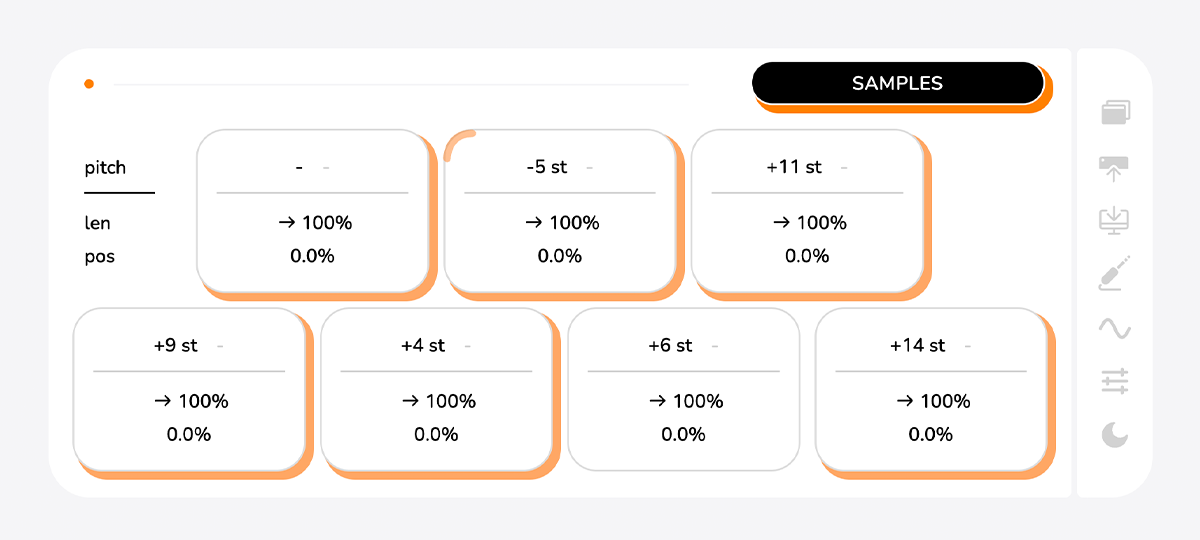
While nearly every feature of the Haloplane can be accessed in standalone operation, the Haloplane companion app provides a useful and expanded context for understanding the state of the instrument. It is especially recommended when designing sounds, as it eases the process of keeping track of the many parameters present in each field. Locally saved presets can always be accessed and modified without the app.
The app primarily acts as a display for the instrument, clearly showing the parameters of each field. It can also select fields and switch between sample and LFO edit modes.
Connecting to the App
By default, the Haloplane acts as a local Wi-Fi network. When first using the instrument:
- Look for the Haloplane Wi-Fi network (named
Haloplane-) on your phone, computer, or tablet. - Open a browser and navigate to
halo.local. - The app will open in the browser and automatically connect to your Haloplane.
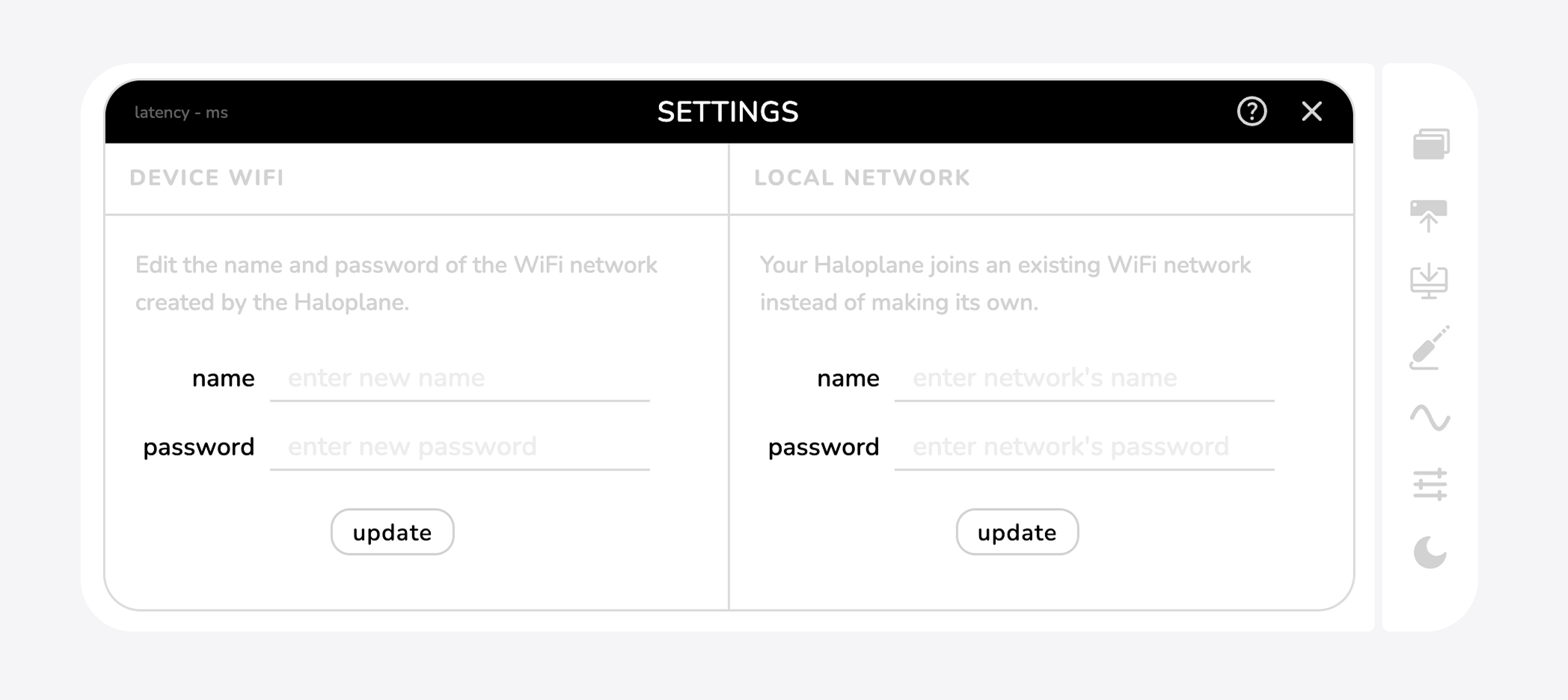
This direct connection is called AP mode. You can also configure the Haloplane to join an existing Wi-Fi network (STA mode) in Wi-Fi Settings.
App Features
Field Display
By default, the app displays the current parameters of the seven fields: transposition, length, reversal, position, and LFO state. The app is primarily a display: sound parameters are adjusted on the Haloplane itself using its knobs and buttons.
However, you can select fields and switch the displayed edit mode (Samples / LFOs):
Clicking/tapping on fields will select them on both the Haloplane and the app.
Clicking/tapping the Sample/LFO toggle area will toggle the display between sample and LFO parameters on both the instrument and app.
Connection Status
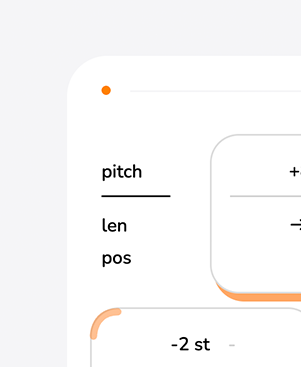
Displays whether or not the app is actively connected to the Haloplane:
- Orange — connected
- Grey — disconnected
- Black — connection attempted
Sample / LFO Display Modes
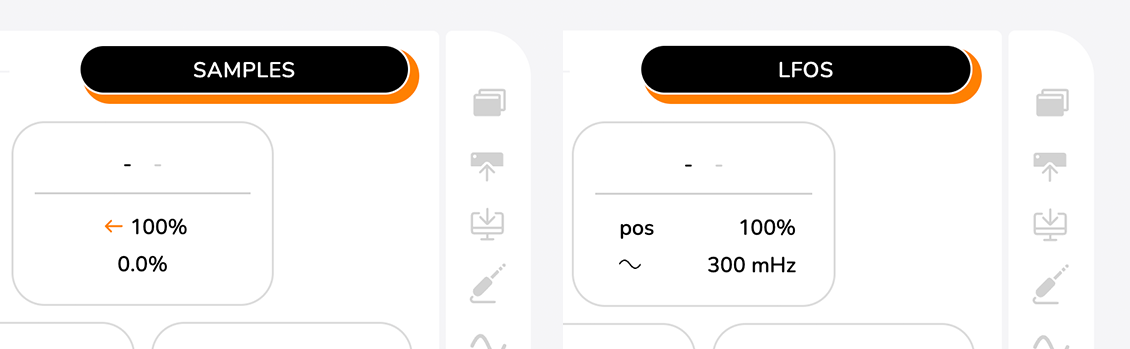
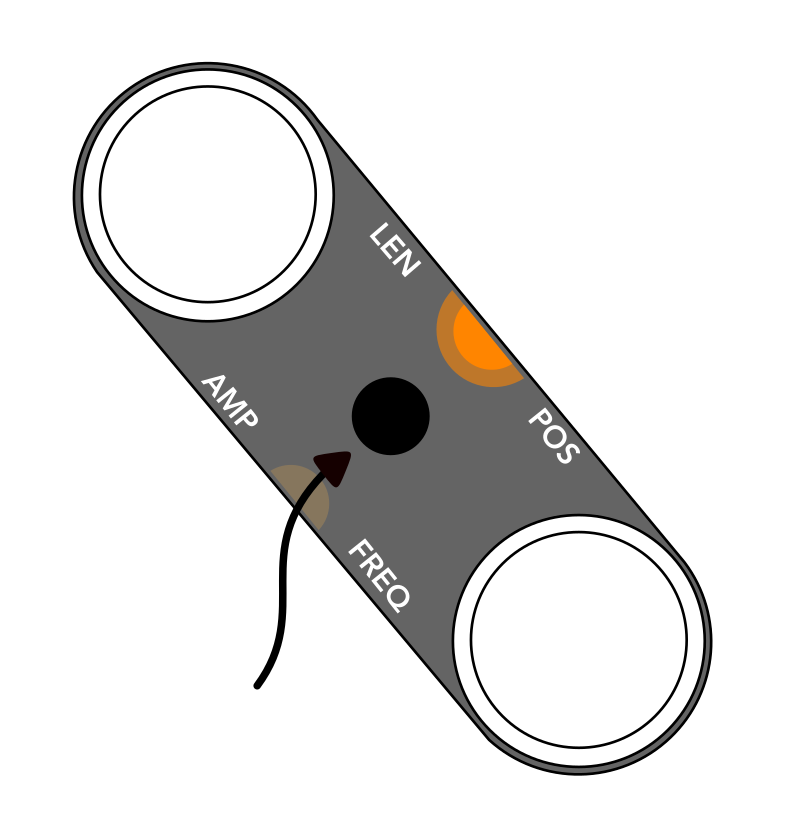
Indicates whether the Haloplane is currently in sample or LFO edit mode and displays the fields' information accordingly. The edit mode is toggled via the button between the LFO/Sample controls on the Haloplane's upper right corner.
Alternatively, click or tap this area in the app to toggle between sample and LFO display modes.
Library
The library is accessed by clicking or tapping the icon.
In the library you can save, rename, delete, and load presets, as well as browse built-in samples, presets, and scales.
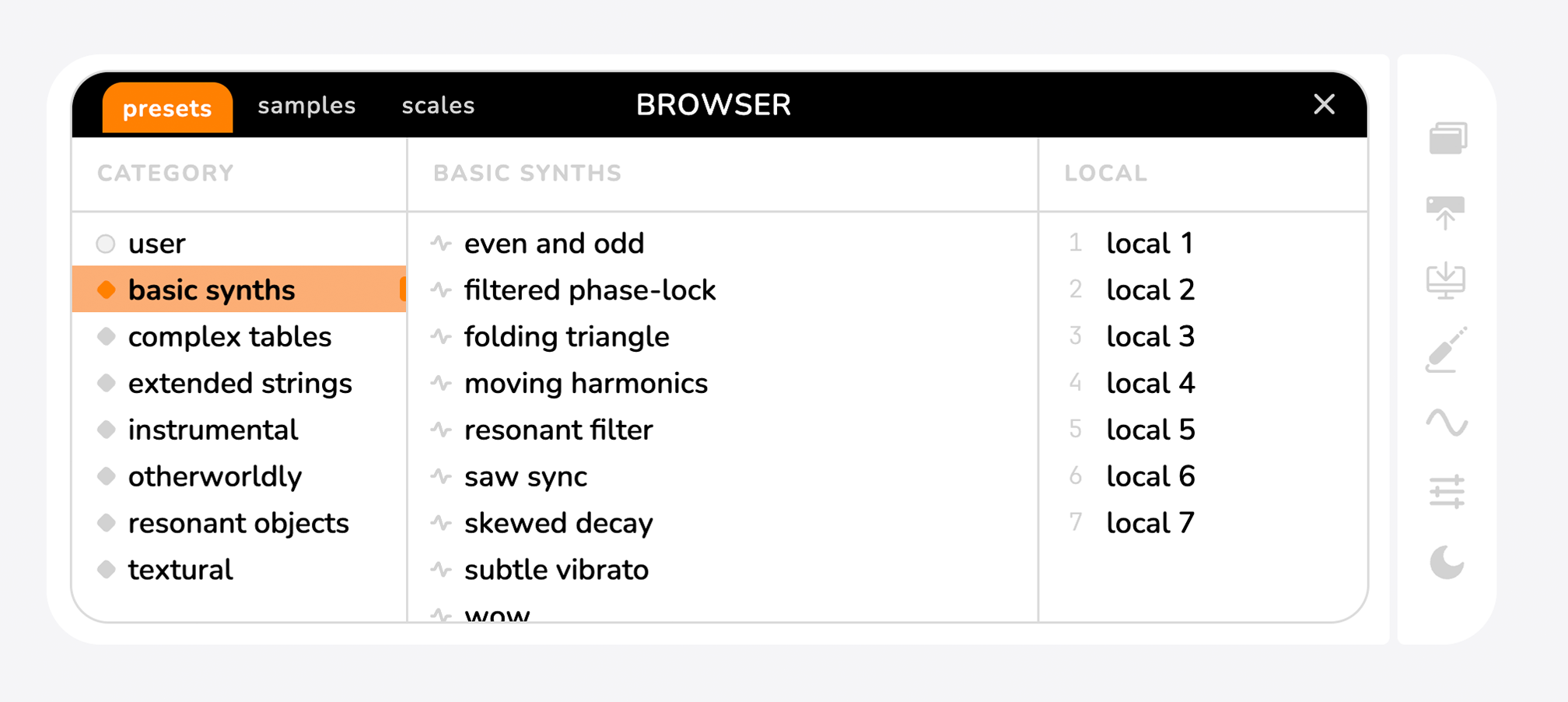
Upload Preset / Audio
Click or tap the icon to open a preset (.hplane file), or upload an audio file to currently selected fields. Also supports drag and drop on desktop.
Download Preset
Click or tap the icon to download the instrument's current state as a .hplane. This provides a way to share presets across instruments or backup a preset to your device in a bundled format. To save a preset to the Haloplane itself, use the library.
Pickup Settings
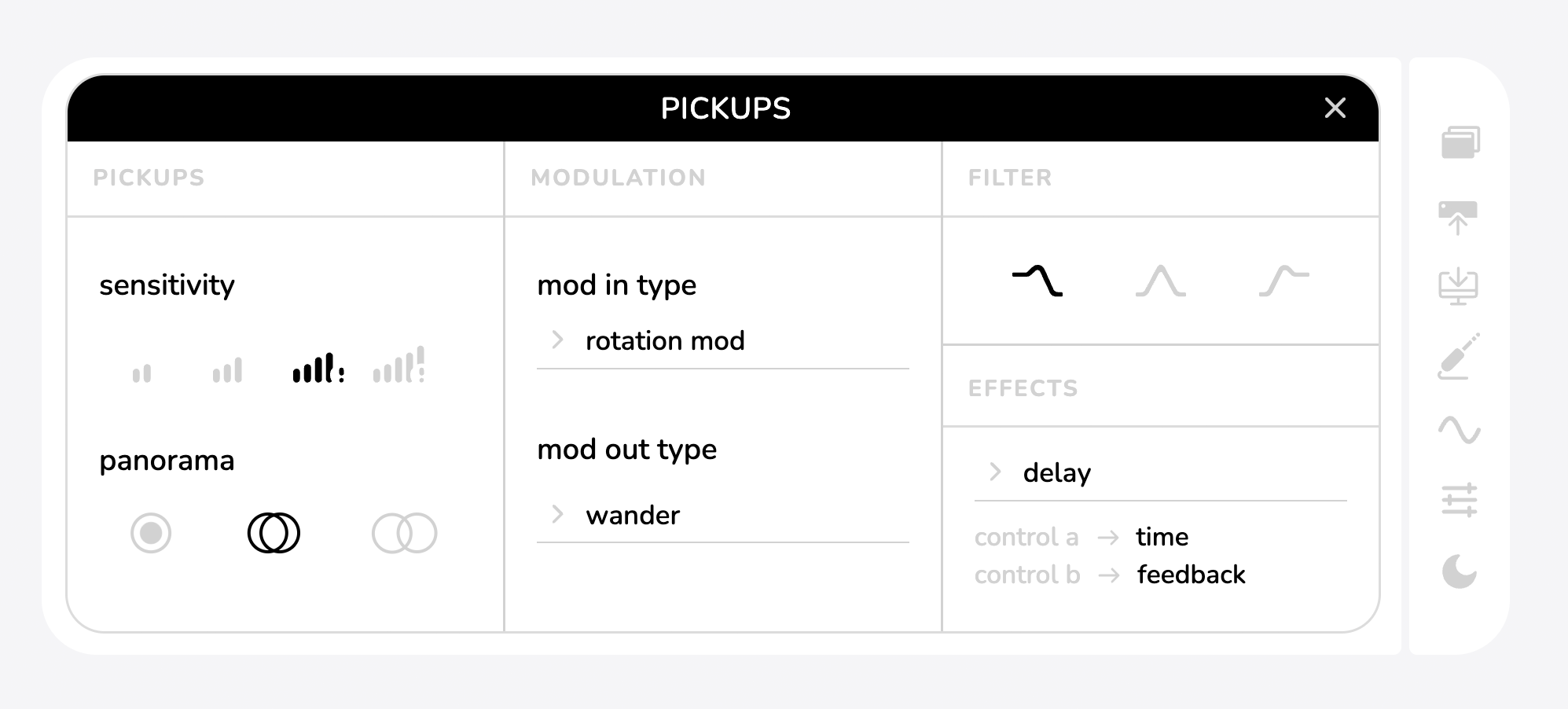
Pickup settings are accessed via the icon. In this section, you can change settings related to the side panel of the instrument: pickup sensitivity, pickup panorama, filter type, audio effect, modulation input type, and modulation output type.
Pickup settings can also be changed on the fly, without the app, using the pickup shortcut combinations.
Wavetable Designer
The wavetable designer can be accessed via the icon. In the designer, you can create wavetables that perfectly match the Haloplane’s required format.
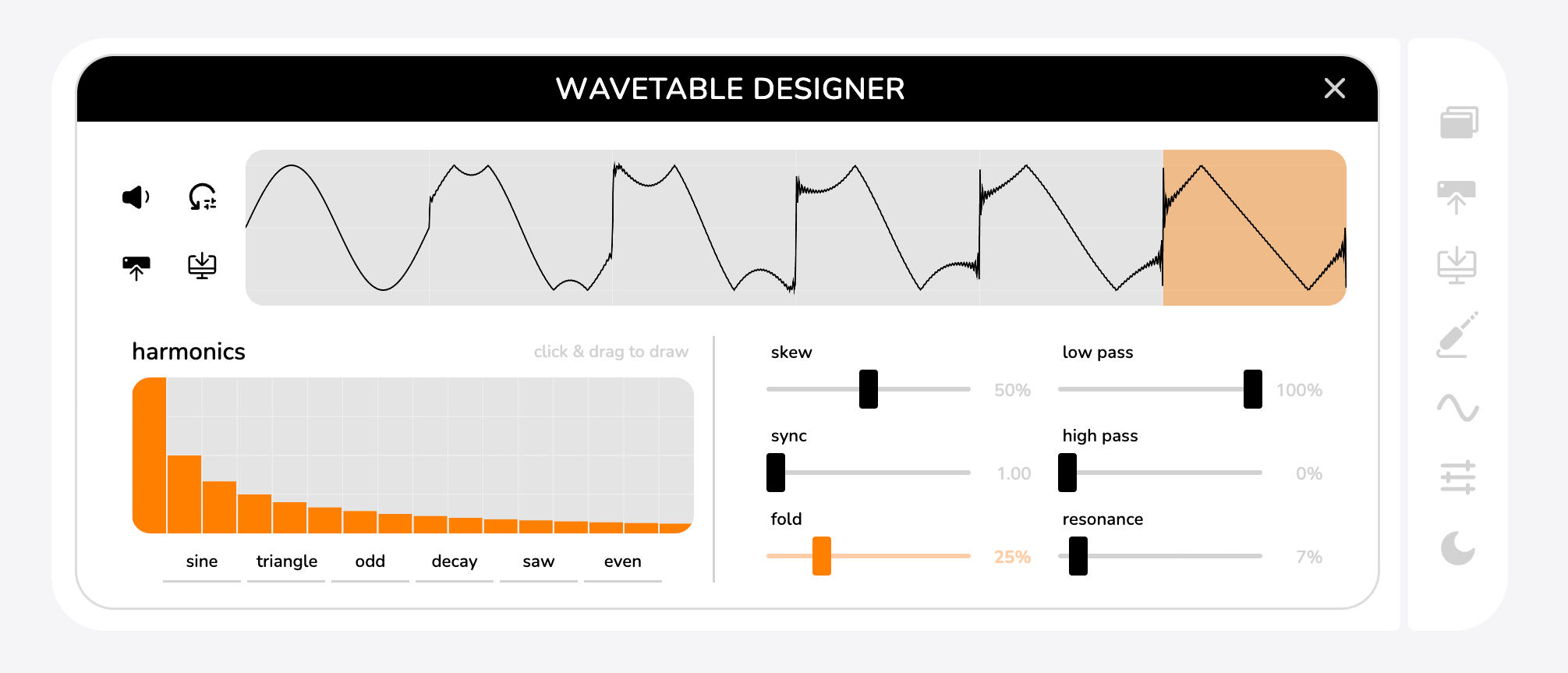
Once a wavetable is designed, there are a few options accessible from the four icons in the upper left corner:
upload the wavetable to the Haloplane. The wavetable will be loaded into any selected fields.
preview the wavetable from your web app's device (your phone, tablet, or computer speaker).
download the wavetable as a .wav file for later use across devices. This file will automatically be recognized as a wavetable
by the Haloplane if you upload it back to the instrument.
to reset the designer to its default state.
Wi-Fi Settings
Click or tap the icon to reconfigure the Haloplane's Wi-Fi. Allow the device to connect to
local Wi-Fi, or change the Haloplane's network name and password. If the Haloplane is connected to the same network
as your mobile device, computer, or tablet, you can navigate to the app at halo.local.
If you ever find yourself locked out of the Haloplane's Wi-Fi due to a forgotten password, hold SAVE and LOAD while powering on the instrument to reset the Wi-Fi AP settings to factory defaults.
Dark Mode
Switch the display from light to dark.